> ## Documentation Index
> Fetch the complete documentation index at: https://auth0.com/ai/docs/llms.txt
> Use this file to discover all available pages before exploring further.
# Integrations
> An integration, or Auth0 Connection, is a relationship between Auth0 and a source of users, such as third-party applications (like Slack or Salesforce) or external Identity Providers (like Google or Microsoft).
These Connections allow users to log in to your application using those identities (such as log in with Google), and share their data from that application to your application. Auth0 standardizes the authentication process from various sources to simplify the integration of different identity providers.
For AI agents that utilize Token Vault, Connections are essential. They allow your AI agents to securely access external APIs, such as Google Calendar or Microsoft 365, on behalf of the user. This is achieved by the user granting your application consent to access their data through these Connections.
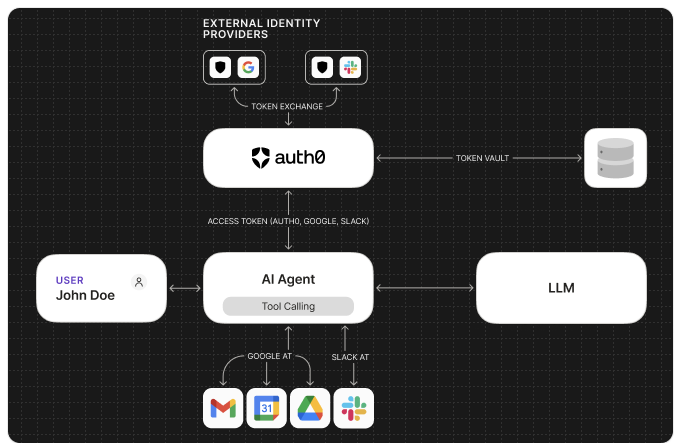
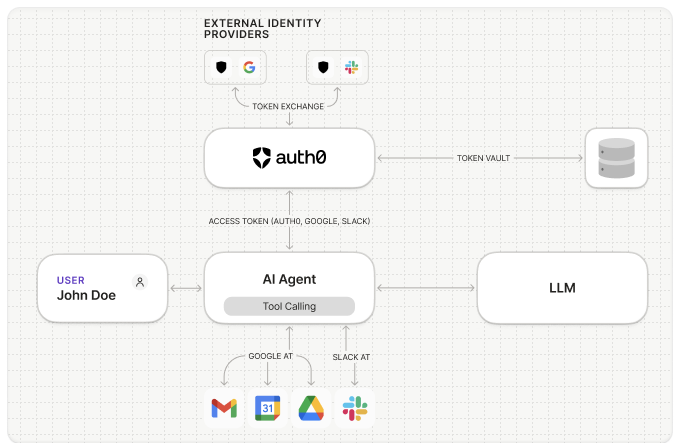 Within the Auth0 Dashboard, Connections are grouped into two categories: Social Connections allow users to log in to your application using their credentials from popular social media and consumer platforms. This provides a frictionless login experience and can enrich user profiles with additional information.
Enterprise Connections are used to authenticate users against a federated corporate directory or identity provider. This is crucial for B2B applications where users need to log in with their company credentials or use single sign-on (SSO).
## Supported Connections
Auth0 provides a large number of Connection types for use with your AI Agents, including:
* [Google](/ai/docs/integrations/google) and [Google Workspace](/ai/docs/integrations/google-workspace)
* [Microsoft](/ai/docs/integrations/microsoft) and [Microsoft Azure AD](/ai/docs/integrations/microsoft-azure)
* [GitHub](/ai/docs/integrations/github)
* [Slack](/ai/docs/integrations/slack)
* [OpenID Connect (OIDC)](/ai/docs/integrations/oidc)
* [Custom Social Connections](/ai/docs/integrations/oauth2)
## Configuring Connections for Token Vault
To enable your AI agents to call APIs on a user’s behalf, you will need to:
If your application uses [Organizations](https://auth0.com/docs/manage-users/organizations), configure the connection, then authenticate the user with the target organization before initiating the Connected Accounts flow. The connected account and stored tokens remain linked to the user's Auth0 profile.
To enable your application to call APIs on a user’s behalf, you will need to
obtain the **Client ID** and **Client Secret** from the Connection you want
to use.
In the Auth0 Dashboard, navigate to **Authentication** and select the
desired **Social** or **Enterprise** Connection type, and configure using
the obtained **Client ID** and **Client Secret**.
When configuring the Connection, you need to specify the default scopes
(permissions) your application requires to access the user's data from the
third-party API.
Within the Auth0 Dashboard, Connections are grouped into two categories: Social Connections allow users to log in to your application using their credentials from popular social media and consumer platforms. This provides a frictionless login experience and can enrich user profiles with additional information.
Enterprise Connections are used to authenticate users against a federated corporate directory or identity provider. This is crucial for B2B applications where users need to log in with their company credentials or use single sign-on (SSO).
## Supported Connections
Auth0 provides a large number of Connection types for use with your AI Agents, including:
* [Google](/ai/docs/integrations/google) and [Google Workspace](/ai/docs/integrations/google-workspace)
* [Microsoft](/ai/docs/integrations/microsoft) and [Microsoft Azure AD](/ai/docs/integrations/microsoft-azure)
* [GitHub](/ai/docs/integrations/github)
* [Slack](/ai/docs/integrations/slack)
* [OpenID Connect (OIDC)](/ai/docs/integrations/oidc)
* [Custom Social Connections](/ai/docs/integrations/oauth2)
## Configuring Connections for Token Vault
To enable your AI agents to call APIs on a user’s behalf, you will need to:
If your application uses [Organizations](https://auth0.com/docs/manage-users/organizations), configure the connection, then authenticate the user with the target organization before initiating the Connected Accounts flow. The connected account and stored tokens remain linked to the user's Auth0 profile.
To enable your application to call APIs on a user’s behalf, you will need to
obtain the **Client ID** and **Client Secret** from the Connection you want
to use.
In the Auth0 Dashboard, navigate to **Authentication** and select the
desired **Social** or **Enterprise** Connection type, and configure using
the obtained **Client ID** and **Client Secret**.
When configuring the Connection, you need to specify the default scopes
(permissions) your application requires to access the user's data from the
third-party API.
Make sure to select the following scopes in the Auth0 Dashboard:
- **User Profile**: Requests basic profile information. Exact name depends on the connection.
- **Offline Access**: Requests an Auth0 refresh token. Exact name depends on the connection.
In the **Purpose** section, toggle on
**Use for Connected Accounts for Token Vault** and save the Connection. To learn more, read [Connected Accounts for Token Vault](https://auth0.com/docs/secure/tokens/token-vault/connected-accounts-for-token-vault).
Ensure that the newly configured Connection is enabled for the Auth0
application that represents your AI agent under **Applications** >
**Applications** > **\[your Auth0 app]** > **Connections.**
## Get started
To begin using Auth0 Token Vault with your AI agents, refer to the following resources:
### Quickstarts
### Guides
### Learn more